

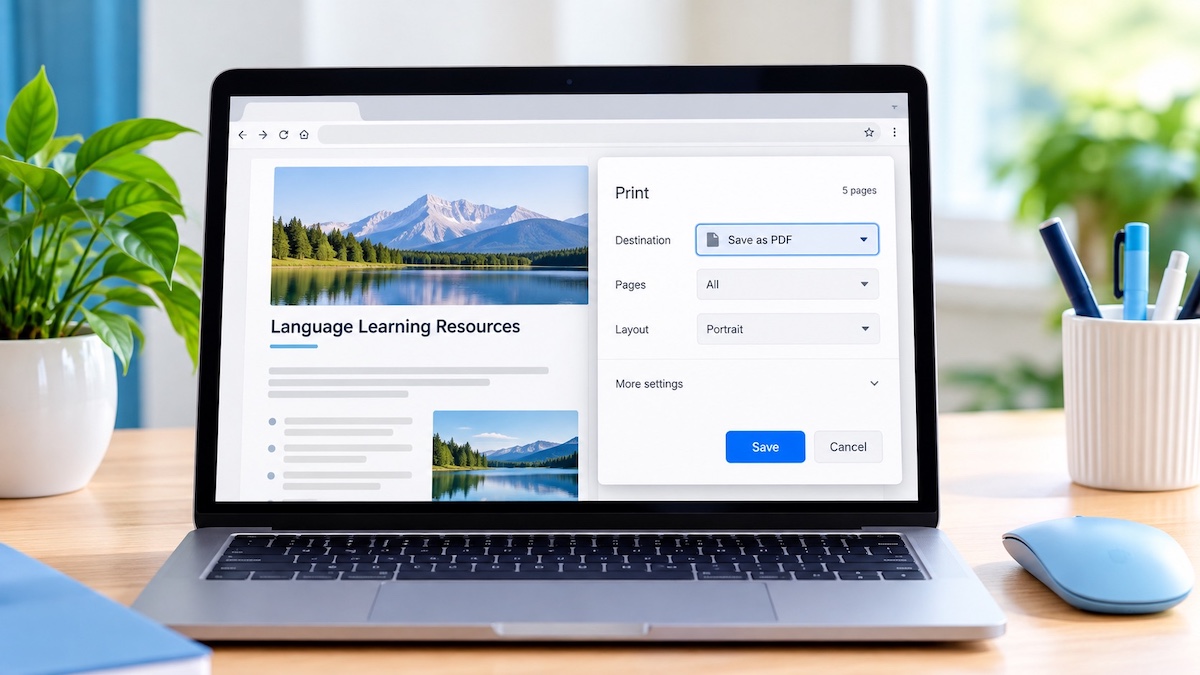
Have you ever found a worksheet, reference chart, study guide, or other useful material online, only to realize there’s no download button anywhere? I have. For the longest time, I resorted to screenshots. They worked, but they were hardly ideal.
Then I learned there was a much easier option hiding in plain sight. Most computers, phones, and tablets can turn printable content into a PDF. Instead of sending the page to a printer, you simply use Print to PDF to create a file you can save.
For Chinese learners, this little trick can be surprisingly useful. It can make worksheets, vocabulary lists, reference pages, study guides, and other materials much easier to keep and come back to later. Once you know how to do it, you may find yourself saving things you previously would have passed over simply because there seemed to be no way to download them.
Before You Start
The exact wording you see may vary depending on your device, browser, and operating system. You may see options such as Print, Save as PDF, Save to PDF, Microsoft Print to PDF, or simply PDF.
The steps below will show you what to look for on each device.
Windows
- Open the webpage or document you want to save.
- Press Ctrl + P on your keyboard.
- Look for Destination or Printer.
- Choose Save as PDF, Save to PDF, or Microsoft Print to PDF, depending on your browser and Windows print screen.
- Check the preview carefully.
- Click Save or Print.
- Choose where you want to save the file, enter a filename, and save it.
Official instructions: Google: Save a Web Page as a PDF with Chrome | Mozilla: Save to PDF in Firefox
Mac
- Open the webpage or document you want to save.
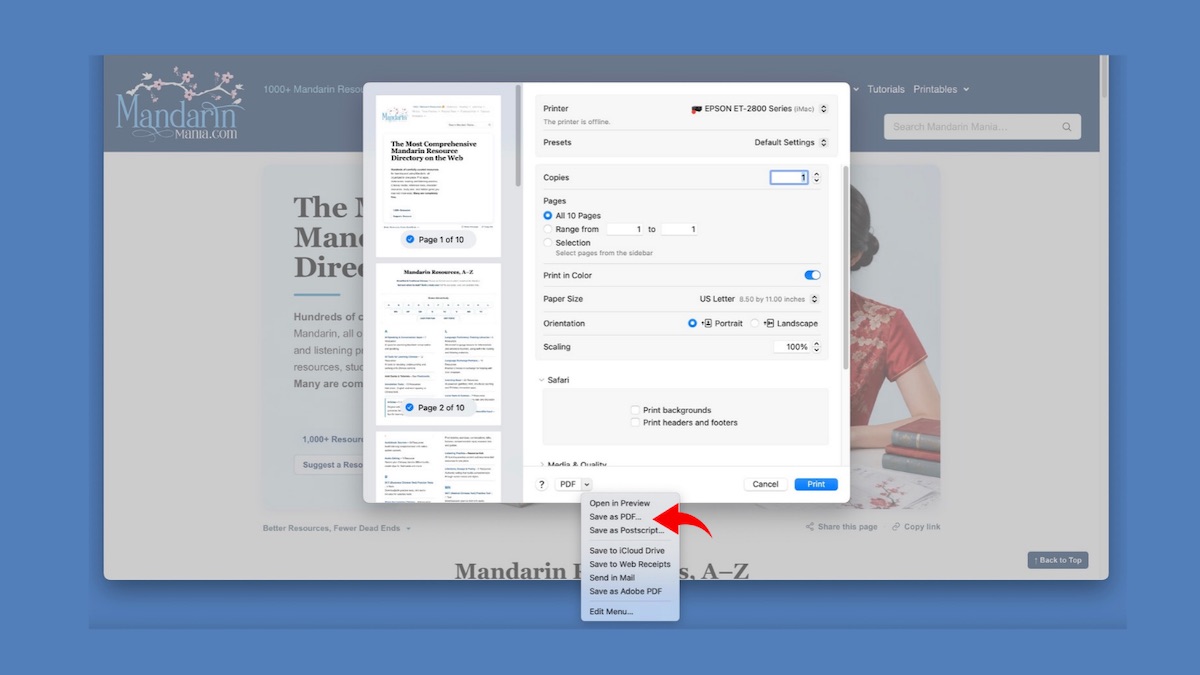
- Press Command + P.
- Look for an option to save the document as a PDF. Depending on the browser, you may see Save as PDF under Destination or a PDF menu in the print window.
- Choose Save as PDF. If you are using a browser’s print preview, click Save to open the file-saving window.
- Enter a filename and choose where you want to save it.
- Save the file.
Official instructions: Apple Support
Chrome on Android
- Open the webpage or document in Chrome.
- Tap the three-dot menu.
- Tap Share.
- Choose Print.
- At the top of the print screen, choose Save as PDF.
- Tap the PDF or save button.
- Choose where you want to save the file and confirm.
Official instructions: Google Chrome Help. On the help page, search for Android print to PDF to find the PDF-saving instructions.
Safari on iPhone or iPad
Safari has a slightly different method for turning a webpage into a PDF.
- Open the webpage in Safari.
- Tap Share. On some iPhone layouts, open the Page Menu first, then tap Share.
- Choose Markup. On iPad, you may need to tap View More first.
- Review the PDF. You do not have to add any markings.
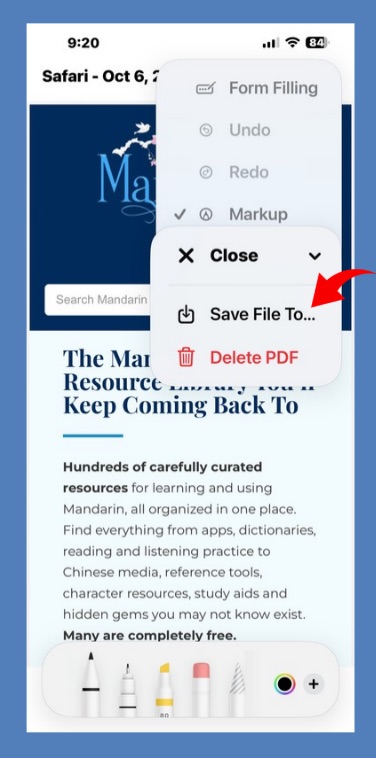
- Tap Done (Close on some versions), then choose Save File To.
- Select a location, enter a filename if needed, and tap Save.
The wording or location of these controls may look slightly different depending on your version of iOS or iPadOS and your Safari layout.
Official instructions: Apple Support for iPhone | Apple Support for iPad
If the PDF Is Embedded Inside a Webpage
Sometimes a website displays a PDF directly on the page instead of opening it as a separate document. You can still try to save it, but the trick is to use the PDF's own controls rather than printing the entire webpage.
- Check that the entire PDF is visible. Scroll through the document to the last page. Some PDF viewers load pages as you scroll, so this helps confirm that the full document is accessible and that no pages appear blank or missing.
- Look for the PDF toolbar. Move your mouse over the document or tap inside it. Some viewers hide their controls until you interact with them.
- Check for a hidden download option. Even if the webpage doesn't have a download button, the PDF viewer may have one. Look for a downward arrow or download icon in its toolbar. If you find one, you can save the original PDF directly.
- If there's no download button, look for an option to open the PDF separately. It may appear as an arrow, an open-in-new-tab icon, or an option in the viewer's menu. Once the PDF opens in its own tab, check for a download or print button.
- Use Print to PDF if downloading isn't available. Click the printer icon inside the PDF viewer, then select your device's PDF-saving option using the instructions above.
What if none of those options appear? Try opening the webpage in another browser. Different browsers use different PDF viewers, and another browser may provide download or print controls that weren't available in the first one. If that doesn't work, the website may restrict how the document can be accessed or saved.
Important: When a PDF is displayed inside a webpage, use the printer icon inside the PDF viewer whenever possible. Your browser's regular Print command may capture the surrounding webpage instead of the PDF itself. If you've opened the PDF in its own tab, however, your browser's Print command should normally work.
What if the Preview Looks Wrong?
Don't save a PDF that looks incomplete or badly formatted. A few adjustments may be all you need to fix it.
- Content is cut off: Try switching between portrait and landscape, reducing the scale, or adjusting the margins.
- Text or images overlap: Try another browser. Some websites don't format their pages properly for printing.
- Pages are missing or blank: Return to the original document and scroll through it to make sure all the content loads. Then reopen the preview. For an embedded PDF, use the document's own print controls.
- Too many blank pages: Try adjusting the scale or paper size. You may also be able to use the Pages setting to save only the pages you need.
- Background colors or images are missing: Enable Background graphics or Print backgrounds in the print settings, if available.
- Unwanted menus or website content: Look for a printer-friendly version or try your browser's reading view.
Using Safari on iPhone or iPad? If you followed the Markup method above, you won't see the usual print settings. Review the PDF before saving, or try the Print menu if you need to adjust the layout.
Saving a Webpage Is Not the Same as Downloading the Original PDF
This distinction is important.
When you use Print to PDF, your device creates a new PDF from the printable version of the content. It does not necessarily retrieve the original file stored on the website.
Because of that, some things may change or disappear, including:
- Fillable form fields
- Interactive features
- Videos and animations
- Menus and buttons
- Some hyperlinks
- Comments or annotations
- Certain background images or design elements
Image quality or formatting may also differ from the original document.
Whenever a website provides an actual Download button, that is most often the better choice.
No Download Button? No Problem.
The next time you find a useful worksheet, reference chart, or study guide without a download button, try saving it as a PDF instead. It won't work perfectly on every website, but it's a handy trick to know. It's certainly easier than piecing together screenshots!