
How to Find, Compare & Download Chinese Fonts on Google Fonts
Google Fonts makes it easy to narrow the font library to Chinese-supporting typefaces, preview those fonts with your own Chinese text, compare the results, and download the font you want. Follow the steps below to go from the main font browser to a downloaded font file on your computer.
Open Google Fonts →Open Google Fonts
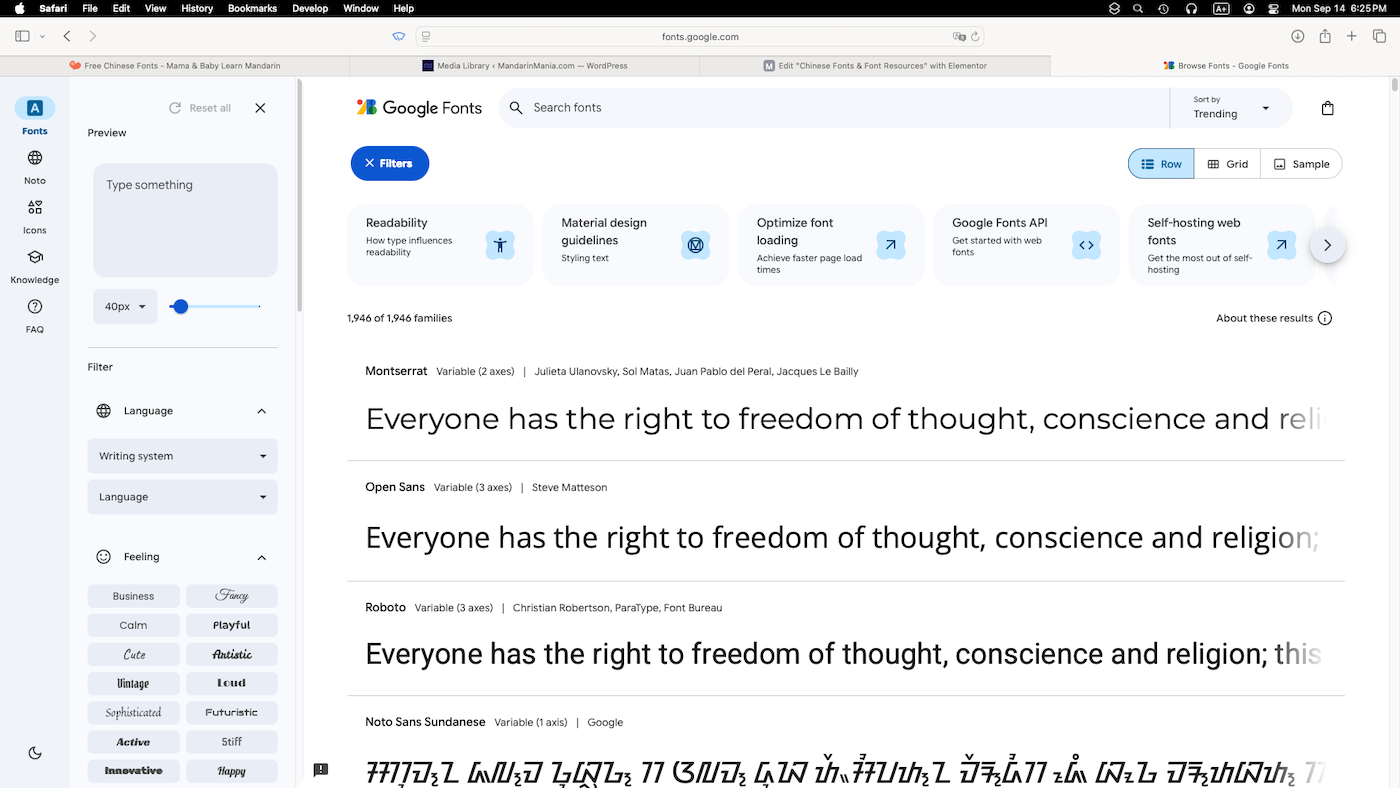
Go to Google Fonts. The main page shows the available fonts, along with tools for finding the fonts you want and changing the sample text. You will use these to find Chinese fonts and see how they look with your own text.
Filter the results for Chinese
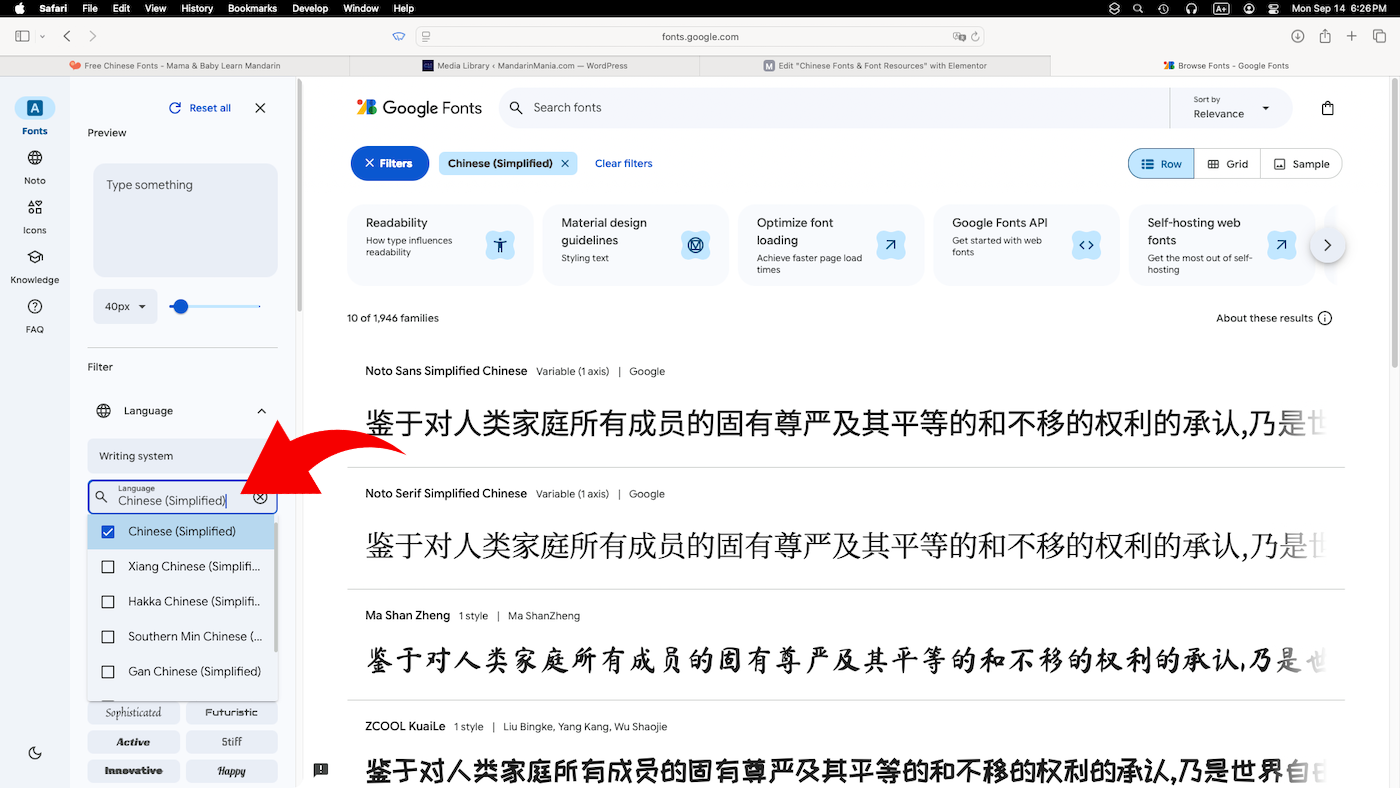
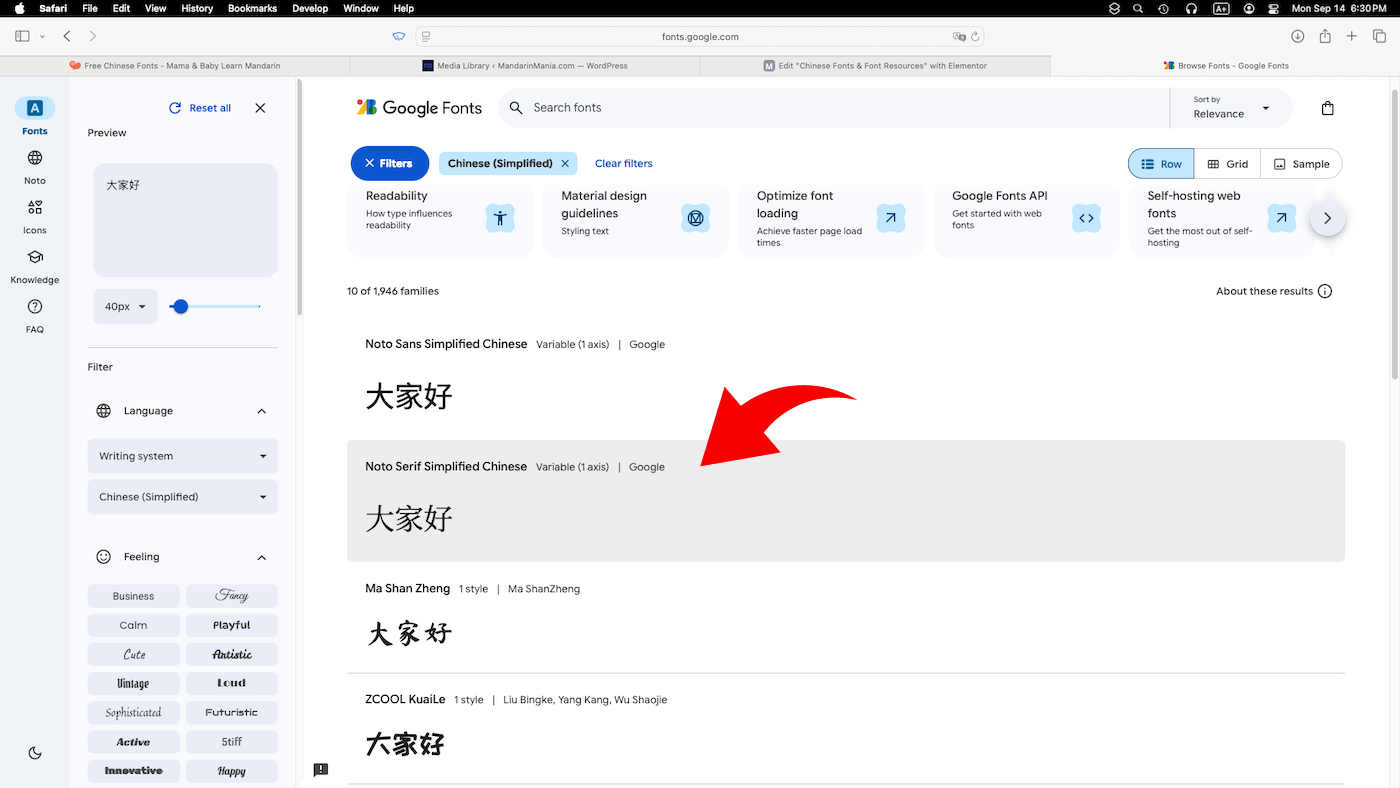
Use the language filter and type Chinese in the search box. Select Chinese from the results to show only fonts that support Chinese characters.
This makes it easier to compare the fonts that are relevant to you.
Preview the fonts with your own Chinese text
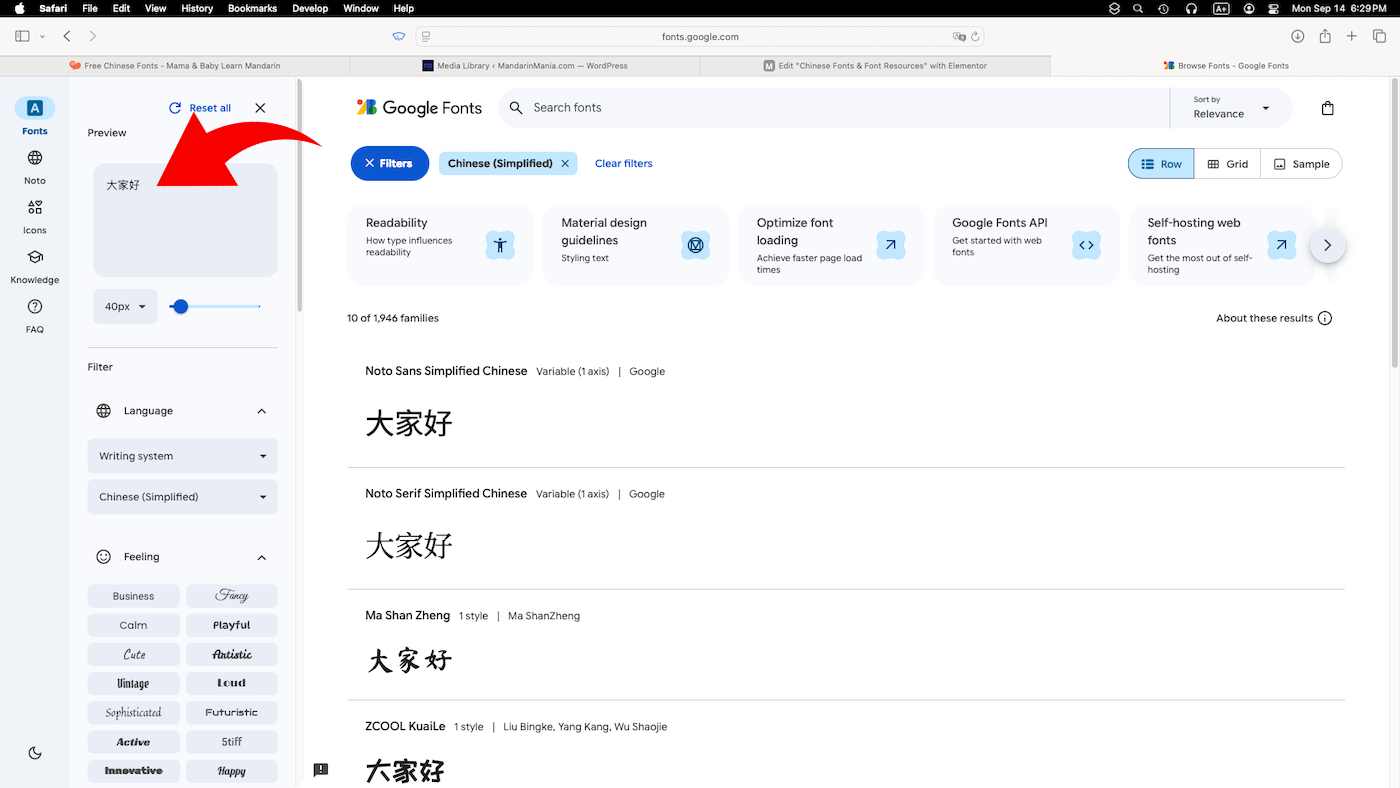
Enter Chinese characters, words, or a short sentence in the preview text box. Google Fonts will show each font using the text you entered.
Using the same text for every font makes it easier to compare how the characters look and decide which style you prefer.
Choose a font to examine
Scroll through the results and compare how your sample text looks in each font. When you find one you like, click the font to open its page.
You can go back and compare other fonts before deciding which one to download.
Add the font for download
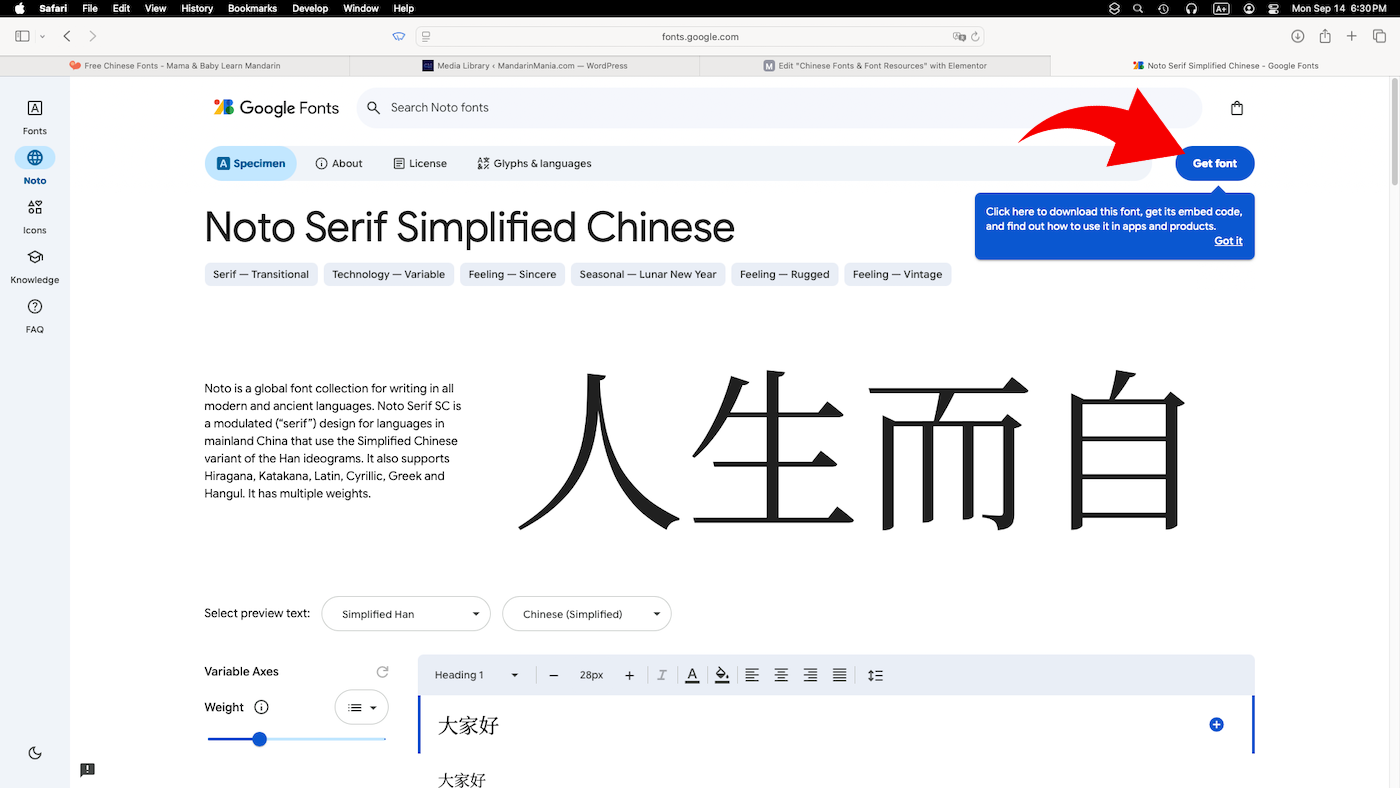
When you find a font you want, select Get font.
This adds the font to your selection, where you can collect several fonts and download them together.
Download the font files
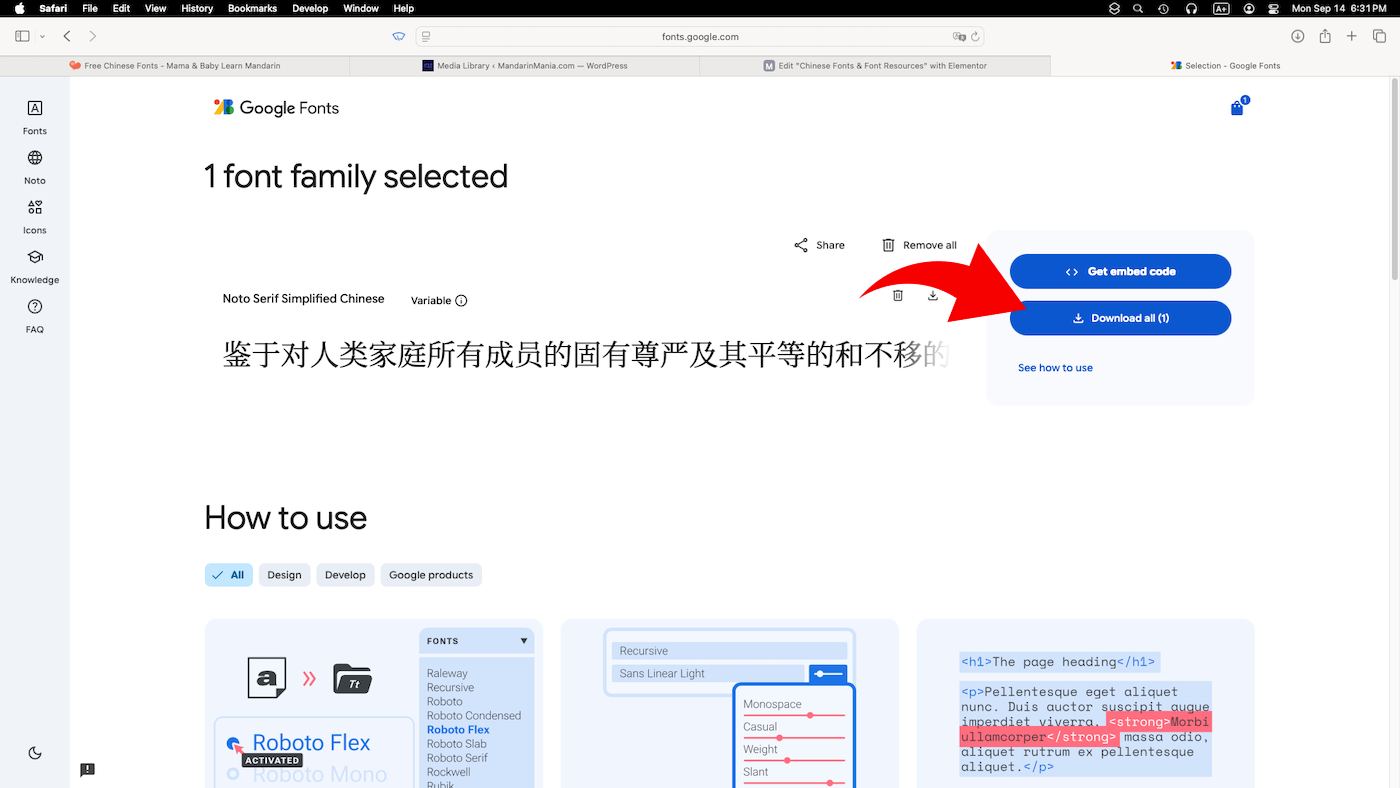
On the next screen, select Download all to download the fonts you chose.
If you chose more than one font, Google Fonts will download them together.
Allow the download if your browser asks
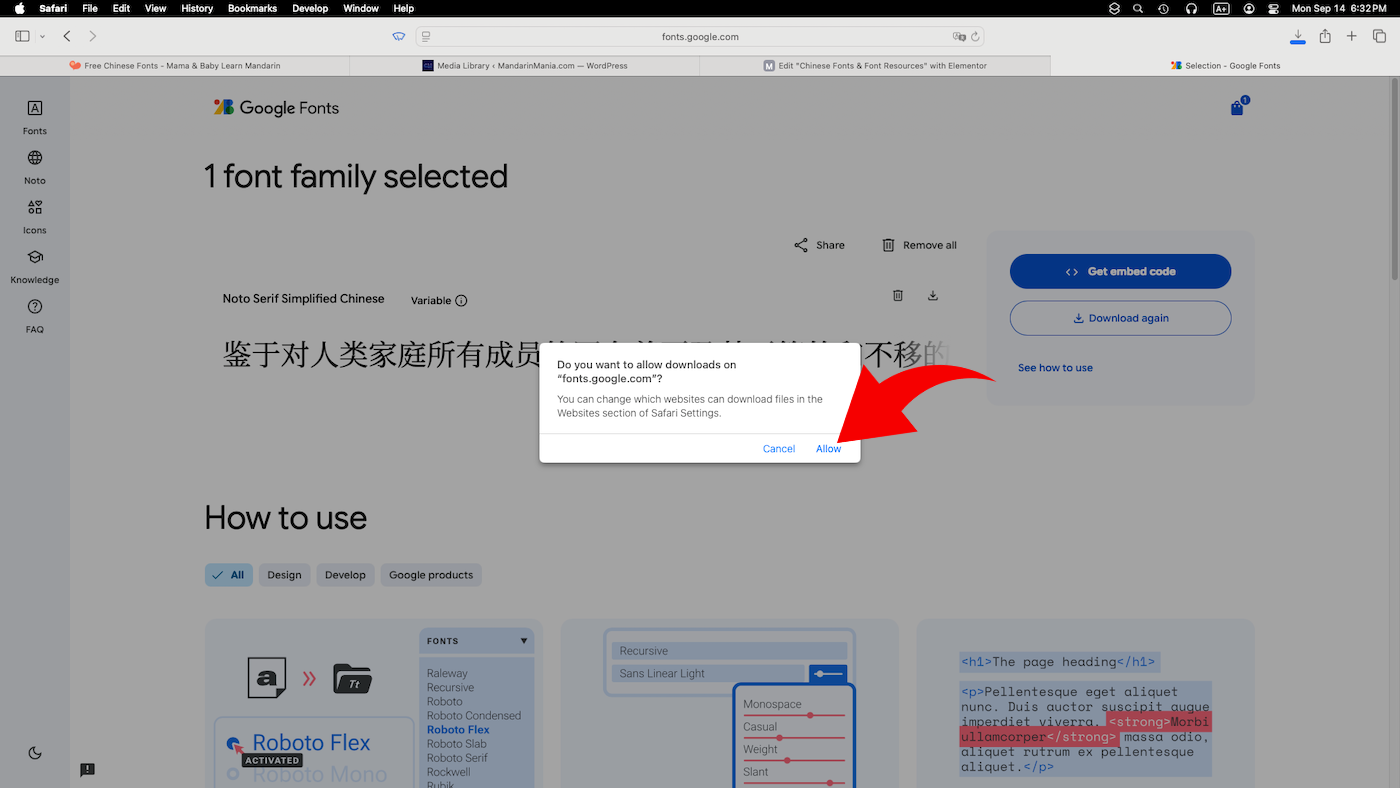
If you are using Safari on a Mac, you may be asked to allow downloads from fonts.google.com. Select Allow to continue.
Using Windows? You may not see this message. Depending on your browser, the download may start automatically or you may be asked where to save the file. Follow the prompt to continue.
Find the downloaded font
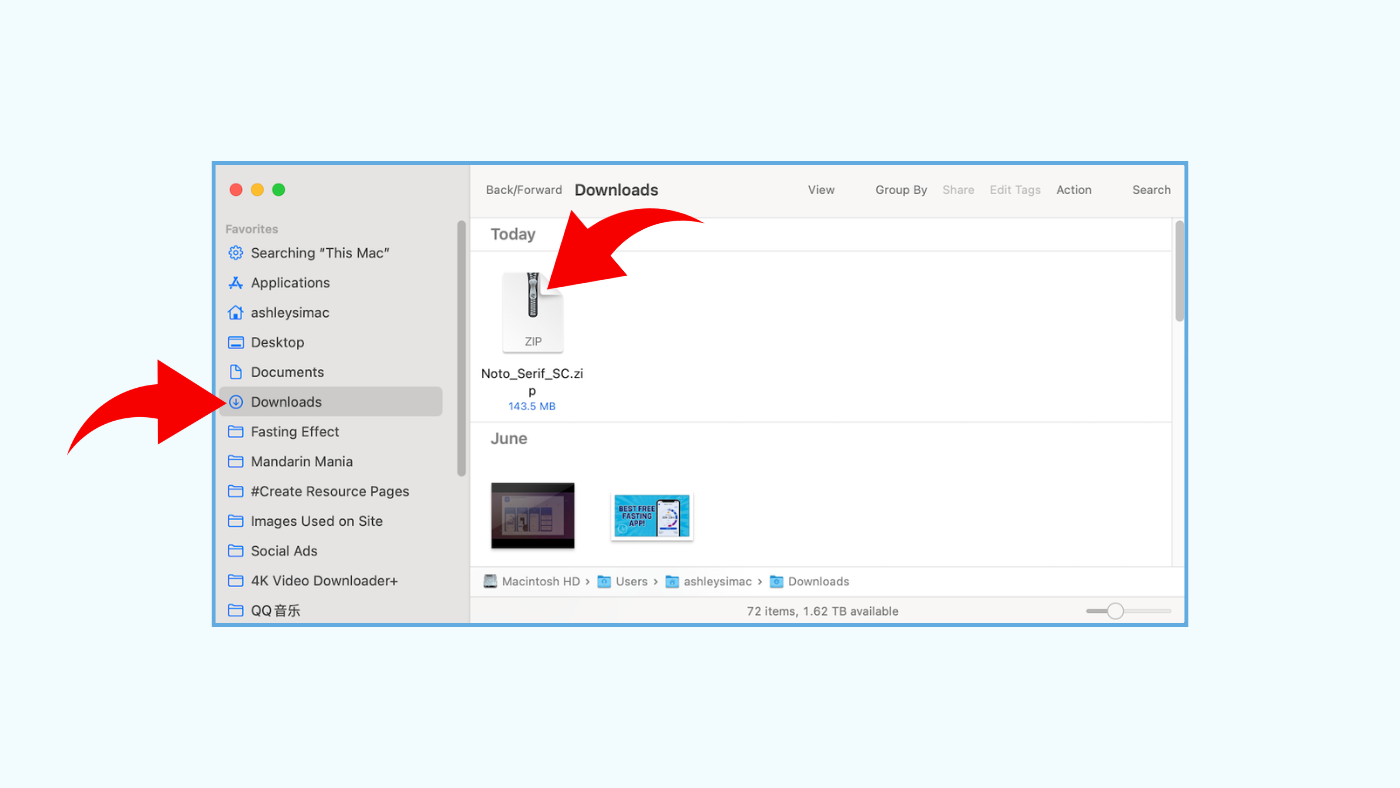
Once the download is complete, open your Downloads folder. On a Mac, open Finder and select Downloads from the sidebar.
On Windows, open File Explorer and select Downloads. If you saved the file somewhere else, open that folder instead.