


★ Turn audio or video into a written transcript so you can read along, review details, and take better notes.
Whisper Web is a free transcription tool that turns spoken audio from audio or video files into text. It is useful when you want the words in front of you while reviewing a video, answering questions, taking notes, or going back over something you heard. Whisper Web may offer a little more privacy than many online transcription tools because your files are processed in your browser instead of being sent to a separate transcription service. It is an open-source Xenova project, meaning its code is publicly available for others to inspect, and it can be found on the Hugging Face website.

★ See the description attached to an image, even when it is not visible on the page.
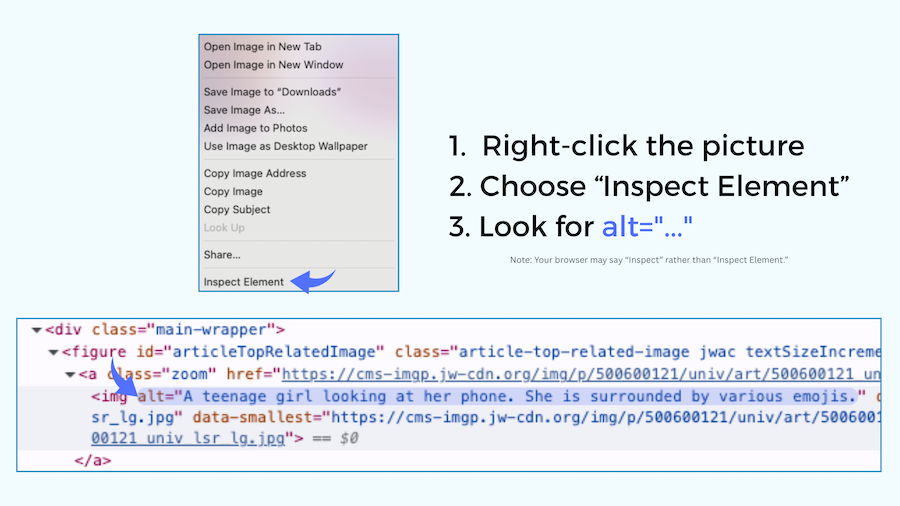
Some pictures have descriptive text attached to them that can give you extra context about what the image is showing. You can often find it using your browser's Inspect tool.
How to find the image description:
1. Right-click the picture and choose Inspect or Inspect Element.
2. Look at the highlighted line of code and find alt="...".
3. The words inside the quotation marks are the image's description. See an example of what this looks like.
Not every picture has an image description, so sometimes you may see alt="" or nothing useful at all.

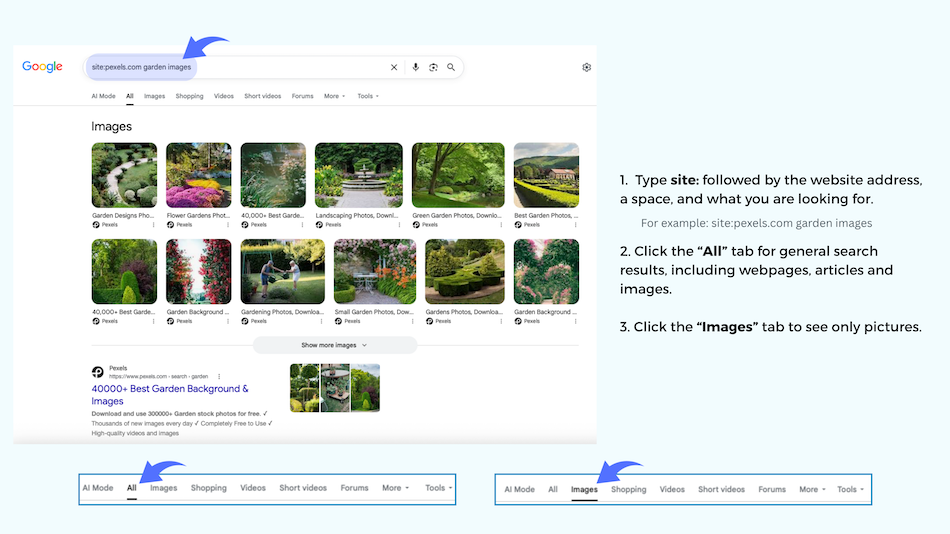
★ Quickly find pages, images, or information buried inside a particular website. Google’s site: search command lets you limit your search to just one website. It can be especially useful when a site has a lot of content or its own search tool is not finding what you need. I especially like using it to find a specific image on a website when I’m putting together a presentation.
In Google, type the name of the website you want to search site.com followed by a space and then what you are looking for. For example, site.org map of promised land will show results related to “map of promised land” from that website only. After searching, click All to see general results, including webpages, articles, and images, or Images to see only pictures related to your search. See an example of what this looks like in Google.