

How to Put Pinyin Above
Chinese Characters
Want pinyin directly above Chinese characters for a reading passage, study sheet or document? The easiest method depends on what you are making. Use an annotation tool for quick automatic results, a specialized pinyin font when you want pronunciation built into the character display, or a phonetic guide in Word, Pages or another compatible word processor when you need more control.
Quickest for Reading & Study Materials
For passages, study sheets, and copied Chinese text, an annotation tool is usually the quickest option. Many can automatically add pinyin above the characters, along with helpful features such as English translations, definitions or word spacing.
Use a Pinyin Font
Some specialized Chinese fonts display pinyin directly above each character, making them a convenient option for worksheets, presentations and other study materials in programs that support custom fonts. Because the pinyin is assigned character by character, double-check characters that can have more than one pronunciation.
Add Pinyin Above Chinese in Microsoft Word
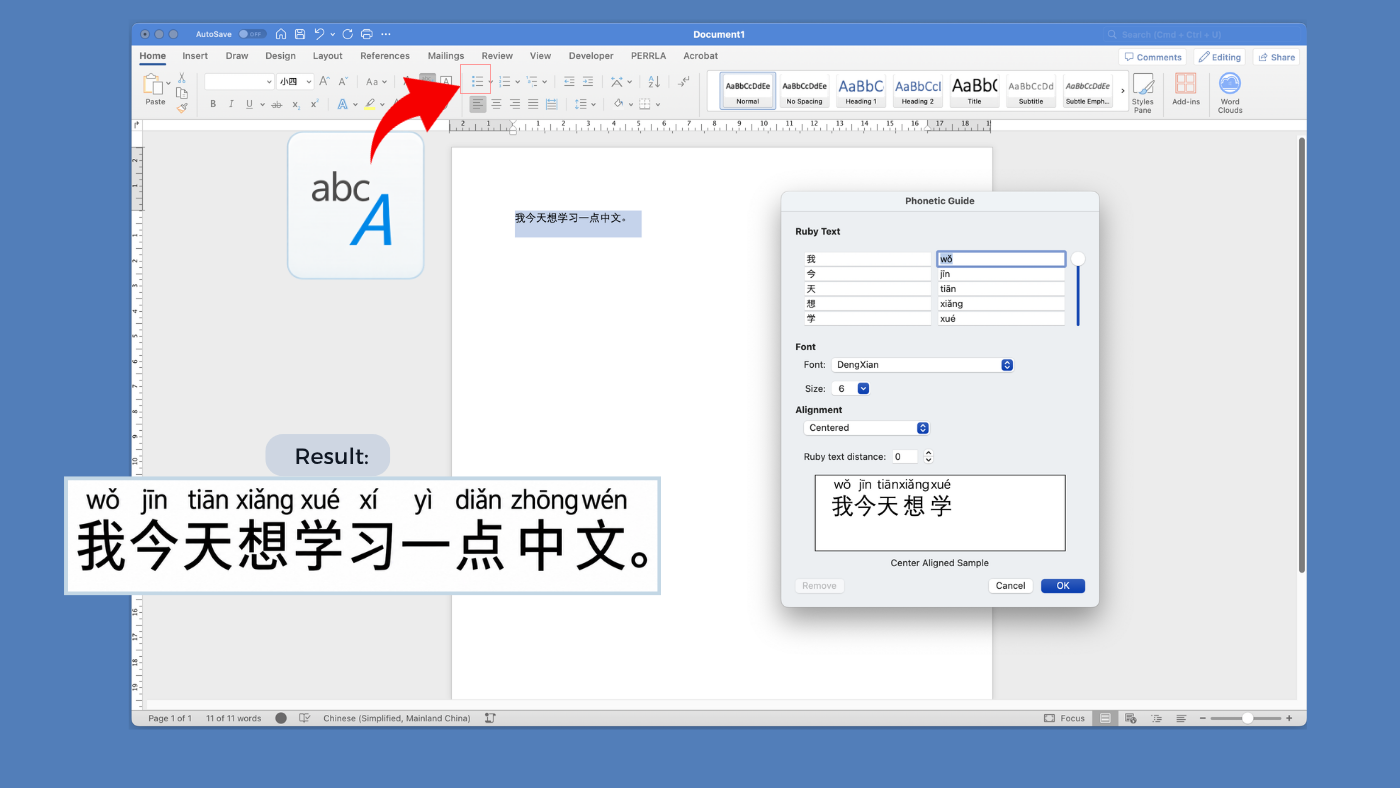
Word has a built-in Phonetic Guide that can attach pronunciation text directly to Chinese characters. Before using it for the first time, make sure Chinese language features are enabled. Want to see how to use the Phonetic Guide once Word is set up? Watch this brief demonstration.
Windows
Open File → Options → Language. Under Office authoring languages and proofing, choose Add a Language and add Chinese (Simplified) or Chinese (Traditional). If Proofing available appears beside Chinese, select it to install the proofing tools.
Mac
Open Word and choose Word → Preferences → East Asian Languages under Authoring and Proofing Tools. Select Simplified Chinese or Traditional Chinese, then restart Word when prompted.
Once Chinese language features are enabled:
- Select the Chinese text you want to annotate.
- Open the Home tab and select Phonetic Guide in the Font section.
- In the Ruby Text box, enter or edit the pinyin you want to appear above the selected Chinese.
- Choose the alignment you want, check the preview and apply the phonetic guide.
I’m Using Apple Pages
Pages has a built-in Phonetic Guide feature on Mac, iPhone and iPad. You will need a Chinese keyboard set up on the device before using it.
- Select the Chinese text. Do not include trailing punctuation or paragraph breaks.
- On Mac, Control-click the selected text and choose Phonetic Guide Text.
- Choose one of the suggested guides or type the pinyin you want.
- Click outside the Phonetic Guide window to apply it.
I Want a Free Desktop Option
LibreOffice Writer is a free desktop option for adding pinyin above Chinese characters with its Asian Phonetic Guide. It does not generate the pinyin automatically, so you will need to enter the pronunciation yourself.
- On Windows or Linux, choose Tools → Options. On Mac, choose LibreOffice → Preferences. Then open Languages and Locales → General and enable Asian language support. Click OK.
- Select the Chinese word or text you want to annotate.
- Choose Format → Asian Phonetic Guide.
- Enter the pinyin in the Ruby text box, choose its position and alignment, then apply it.